ClickUp Integration
Connect ProductBridge to ClickUp to link feedback posts with tasks, create ClickUp tasks directly from feedback, and automatically update post status when linked tasks move forward in your ClickUp workflow.

Where to find it
Open ClickUp in ProductBridge
Sidebar → Connect Sources → ClickUp
Direct link: https://app.productbridge.io/dashboard/settings/integrations/clickup
In-app path: Sidebar → Connect Sources → ClickUp
Requires: integration:view to see the integration, integration:manage to connect or disconnect it.
All integrations: https://app.productbridge.io/dashboard/settings/integrations
Overview
The ClickUp integration is a two-way tracker link between ProductBridge feedback and ClickUp tasks. It does not import tasks as feedback — instead, it gives your product and engineering teams a clean handoff once a piece of feedback is ready to be acted on.
Once connected, you can:
-
Search ClickUp tasks from any feedback post and link them in one click
-
Paste a Task ID to link an existing ClickUp task without searching
-
Create a new ClickUp task directly from a feedback post — complete with workspace, list, and status pickers
-
Auto-sync post status — when a linked task's status changes in ClickUp, ProductBridge updates the corresponding post status based on rules you define
-
Notify voters automatically when a post status changes because of a linked task update
The sync runs in real time over webhooks. There is nothing to poll, no manual refresh.
Prerequisites
-
A ClickUp workspace where you have Workspace owner or admin access (required to authorize the app)
-
A ProductBridge organization with at least one feedback board and configured post statuses
-
A user with Owner-level admin permissions in ProductBridge to install integrations
Connect ClickUp
Open the Integrations page
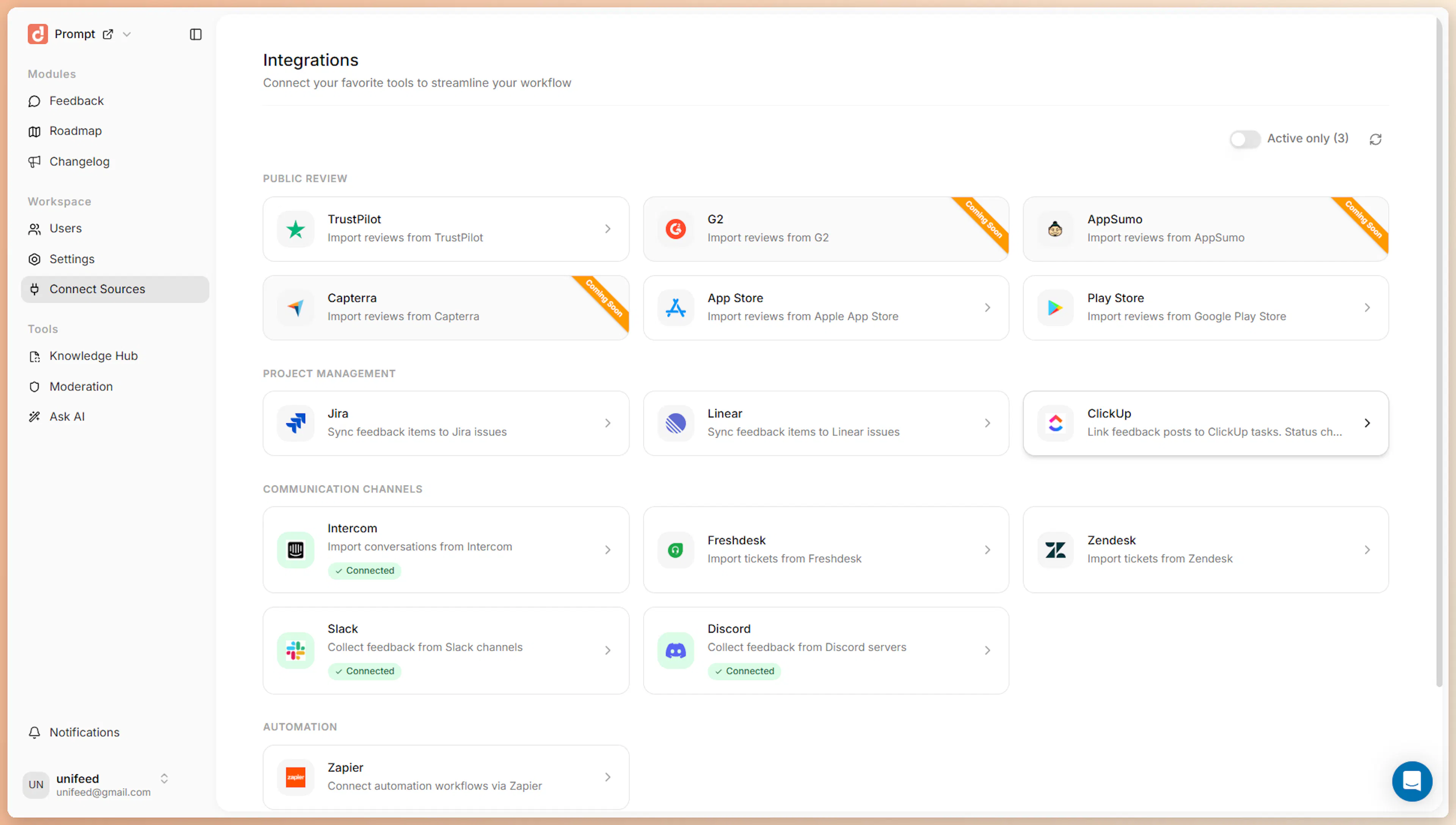
Sign in to your ProductBridge dashboard and click Connect Sources in the sidebar, then select ClickUp from the Project Management section.
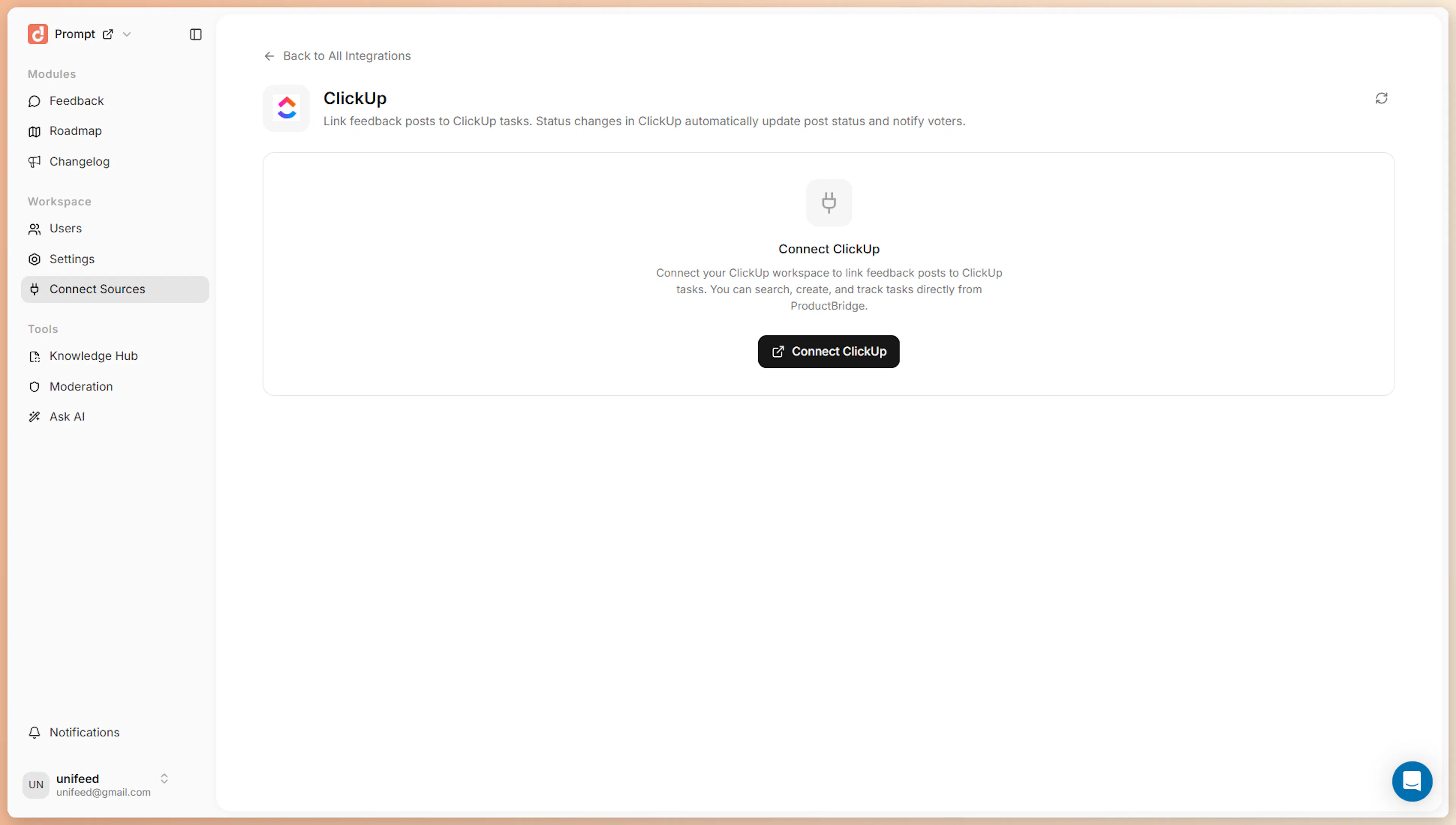
Click Connect ClickUp
On the ClickUp integration page, click Connect ClickUp. ProductBridge starts the ClickUp OAuth flow and redirects you to ClickUp's authorization screen.
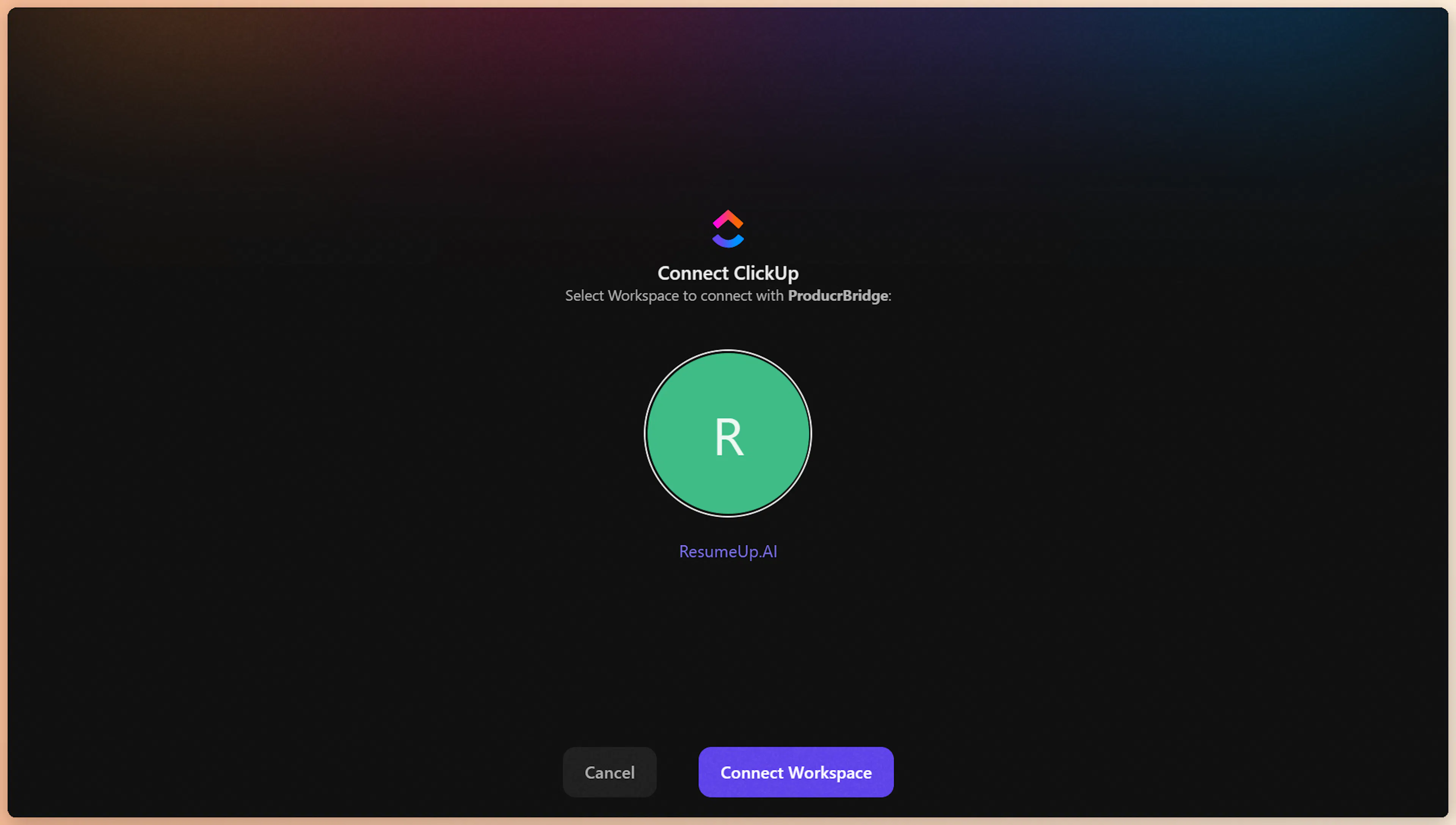
Authorize ProductBridge in ClickUp
On ClickUp's authorization screen, choose the workspaces you want to make available to ProductBridge. You can select one or several. Click Connect Workspace to grant access.
ClickUp grants access at the workspace level. You can disconnect at any time from the same page in ProductBridge — there is no scope selection, so review which workspaces you grant access to.
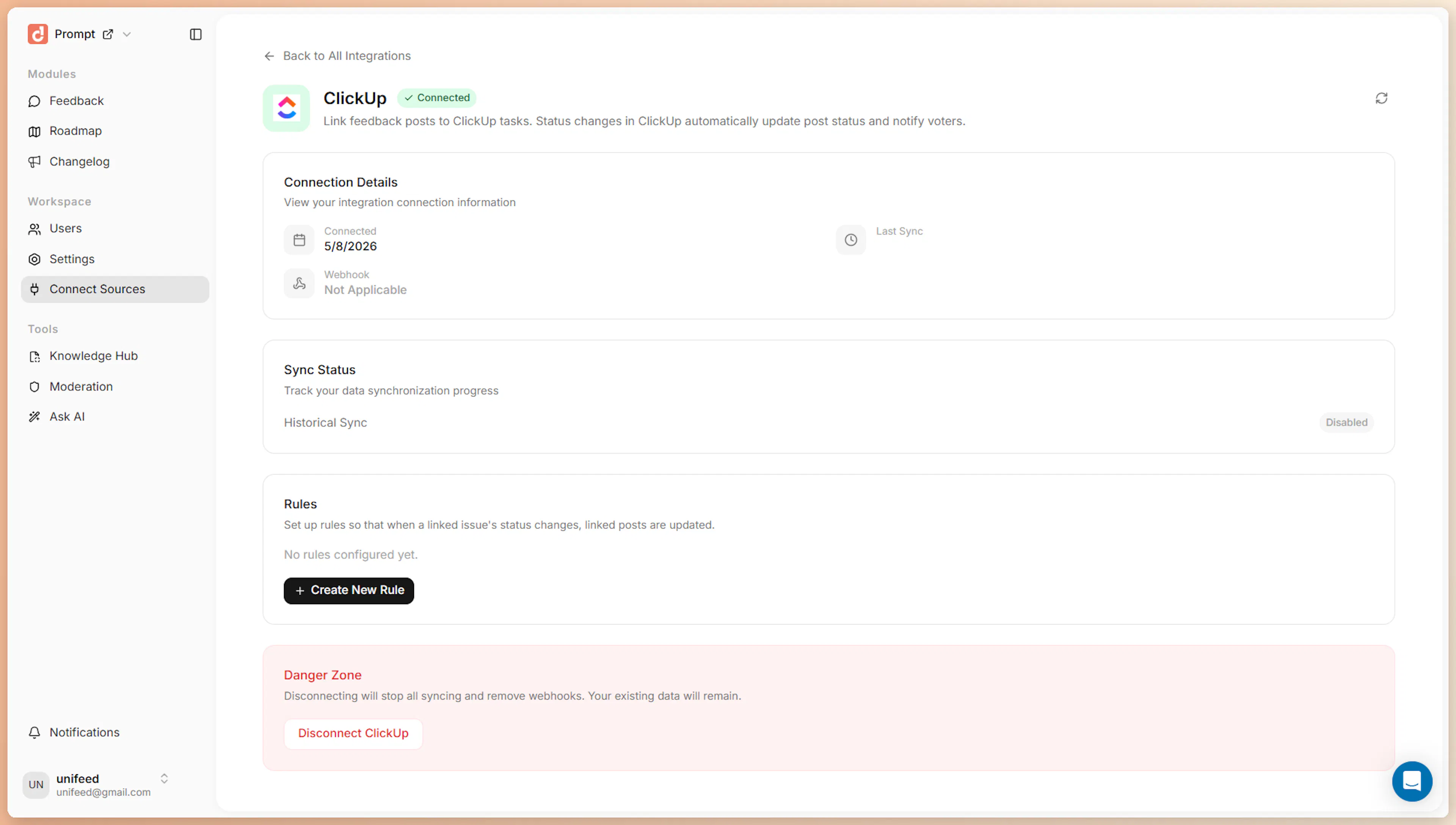
Confirm the connection
After you approve, ClickUp redirects you back to ProductBridge. The integration status updates to Connected and the page now shows the ClickUp user, the connected workspaces, and the disconnect option.
Behind the scenes, ProductBridge:
-
Encrypts and stores the access token
-
Registers a webhook per authorized workspace so ClickUp can deliver task status events in real time
-
Stores each workspace's webhook signing secret so incoming events can be verified
Link a feedback post to a ClickUp task
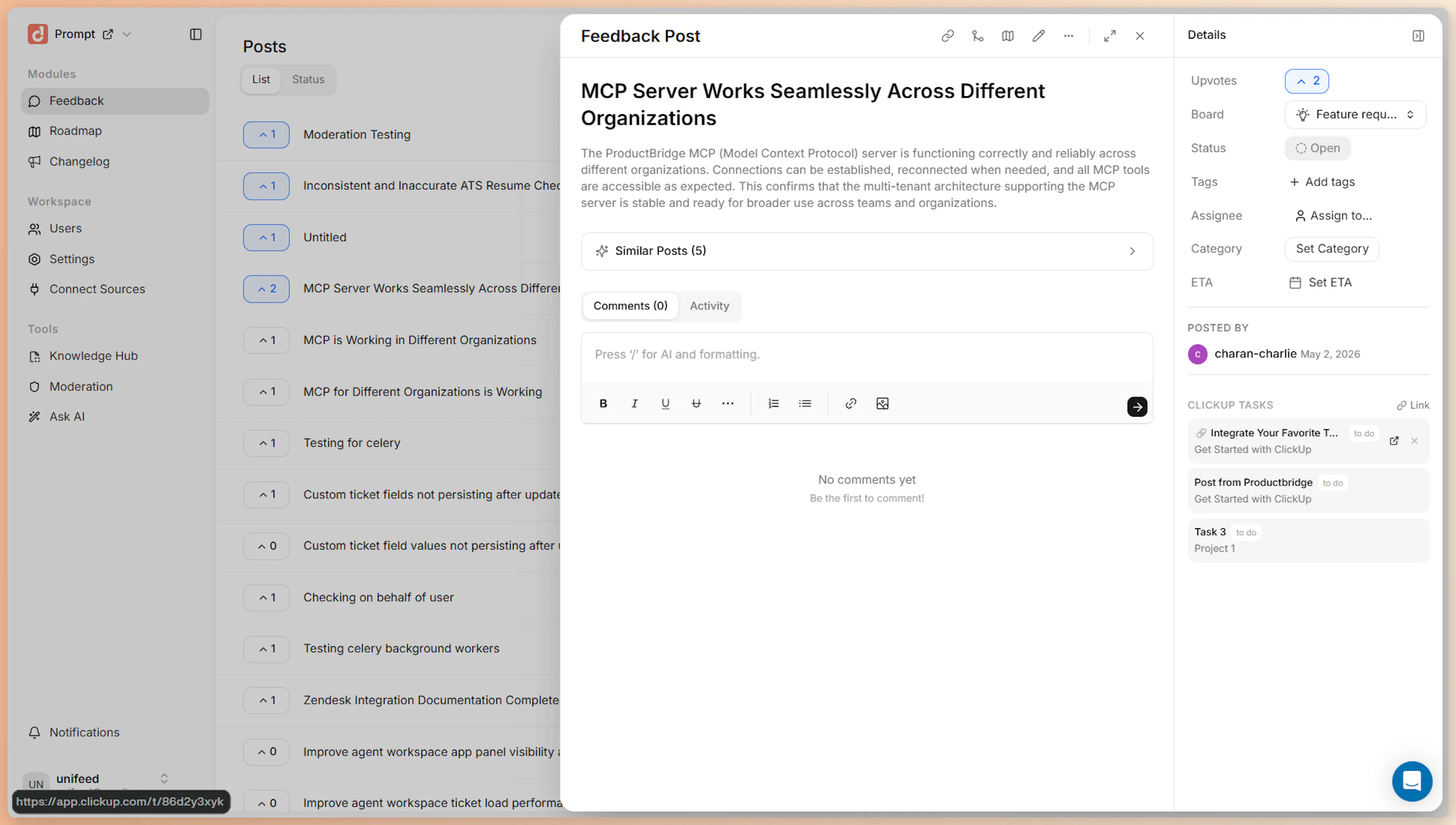
Once connected, every feedback post in your dashboard gets a ClickUp Tasks section in the post detail view.
Open a feedback post
Click any post in the Feedback view to open the post detail panel. Scroll the right sidebar to find the ClickUp Tasks section.
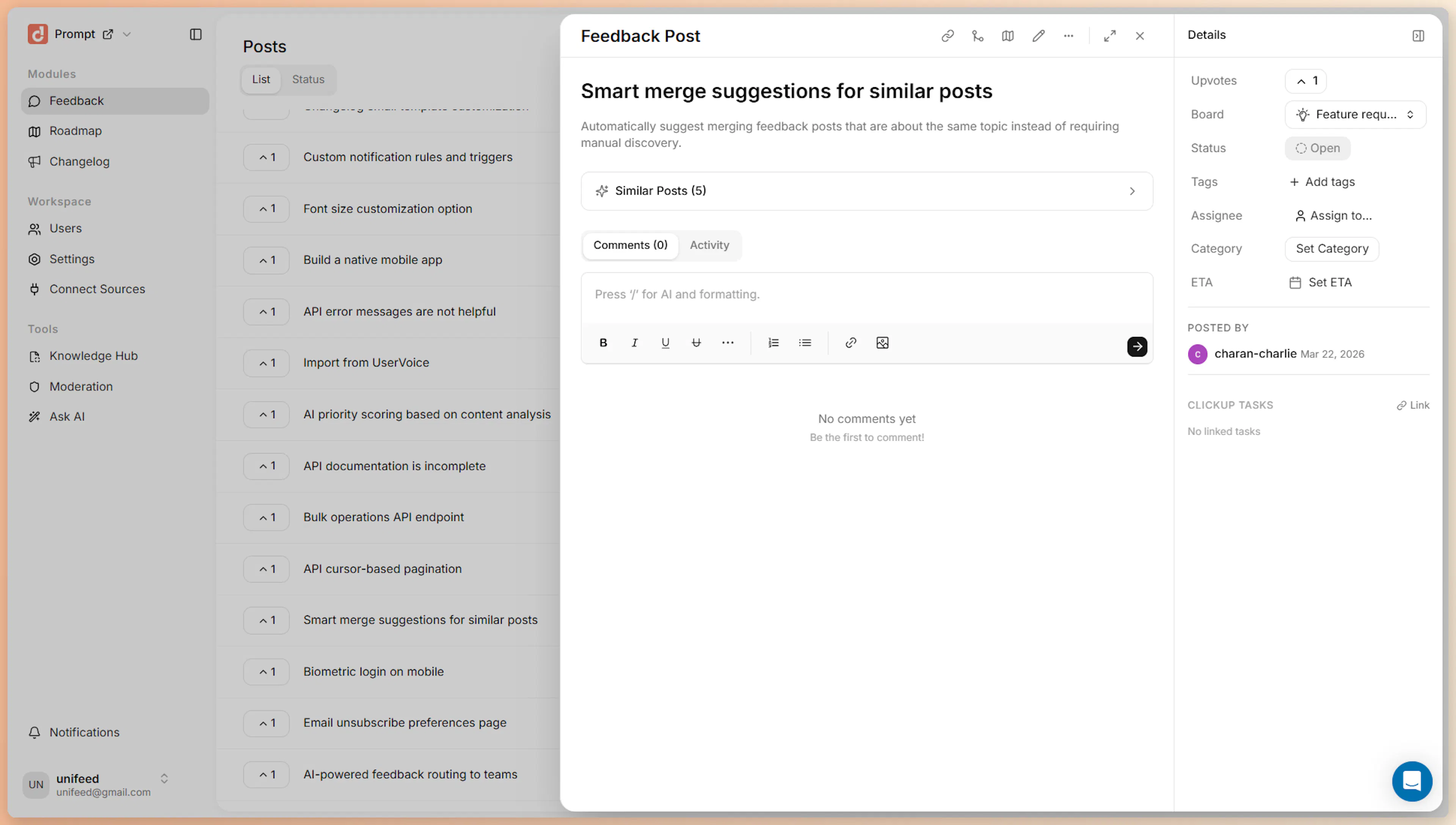
Click Link
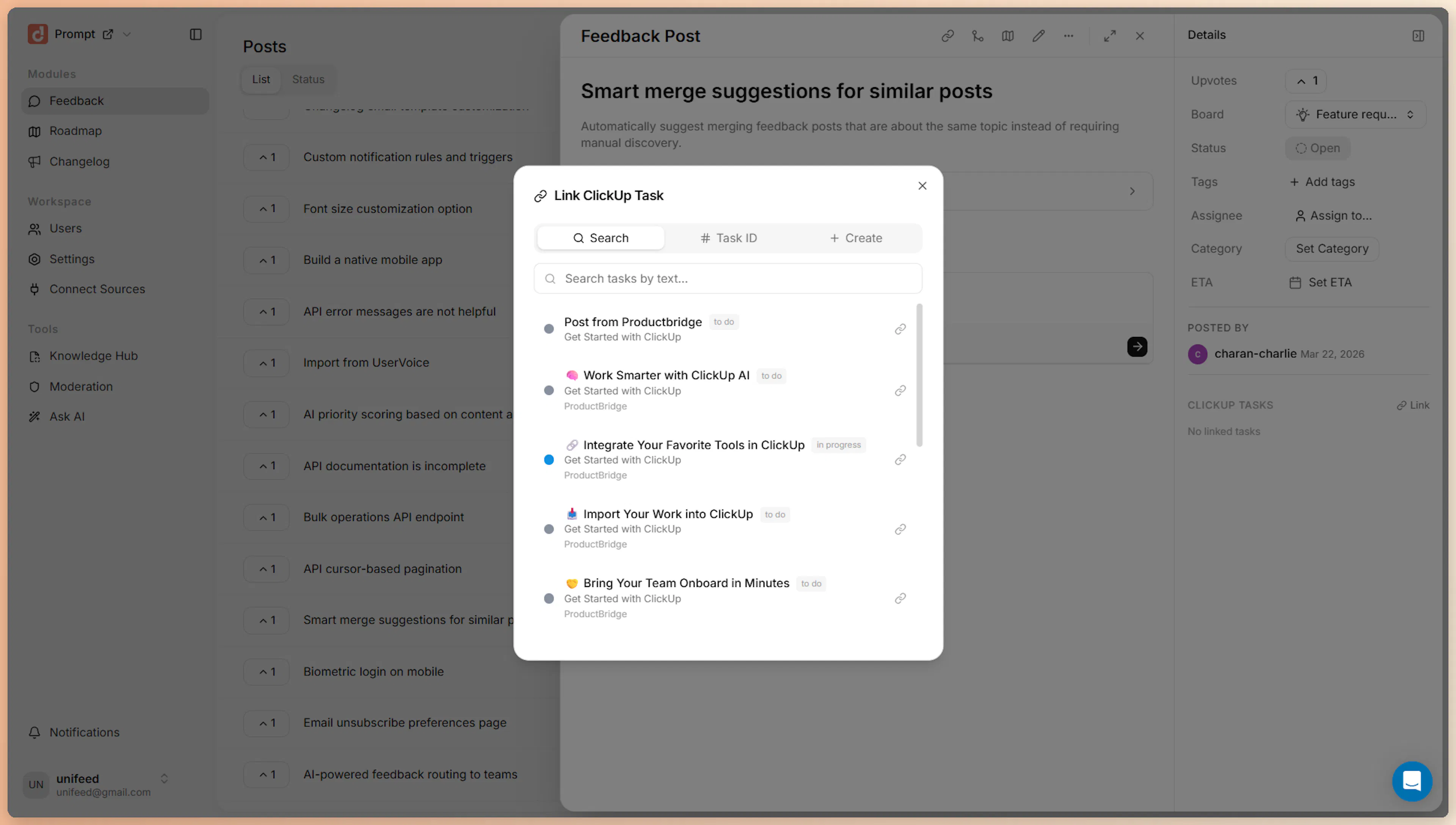
Click the Link button next to ClickUp Tasks. A dialog opens with three tabs: Search, Task ID, and Create.
Choose how to link the task
Use the tab that fits how you usually work in ClickUp.
Pick a workspace, then type any text to search across tasks in that workspace. Click any result to link it instantly.
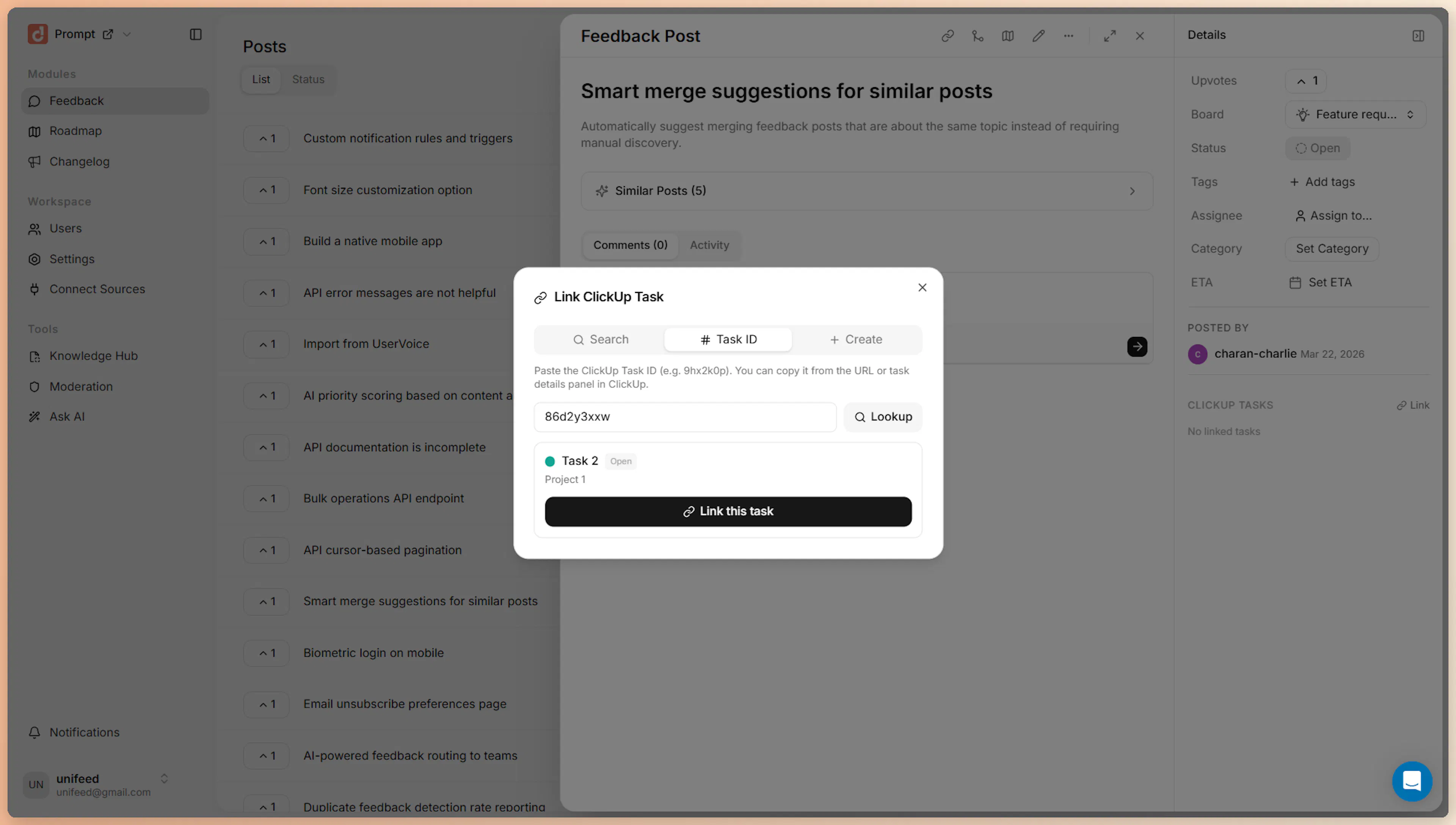
Paste a ClickUp Task ID (for example 9hx2k0p) and click Lookup. ProductBridge fetches the task, shows a preview, and links it when you confirm.
The Task ID is the alphanumeric string in your ClickUp task URL: https://app.clickup.com/t/9hx2k0p.
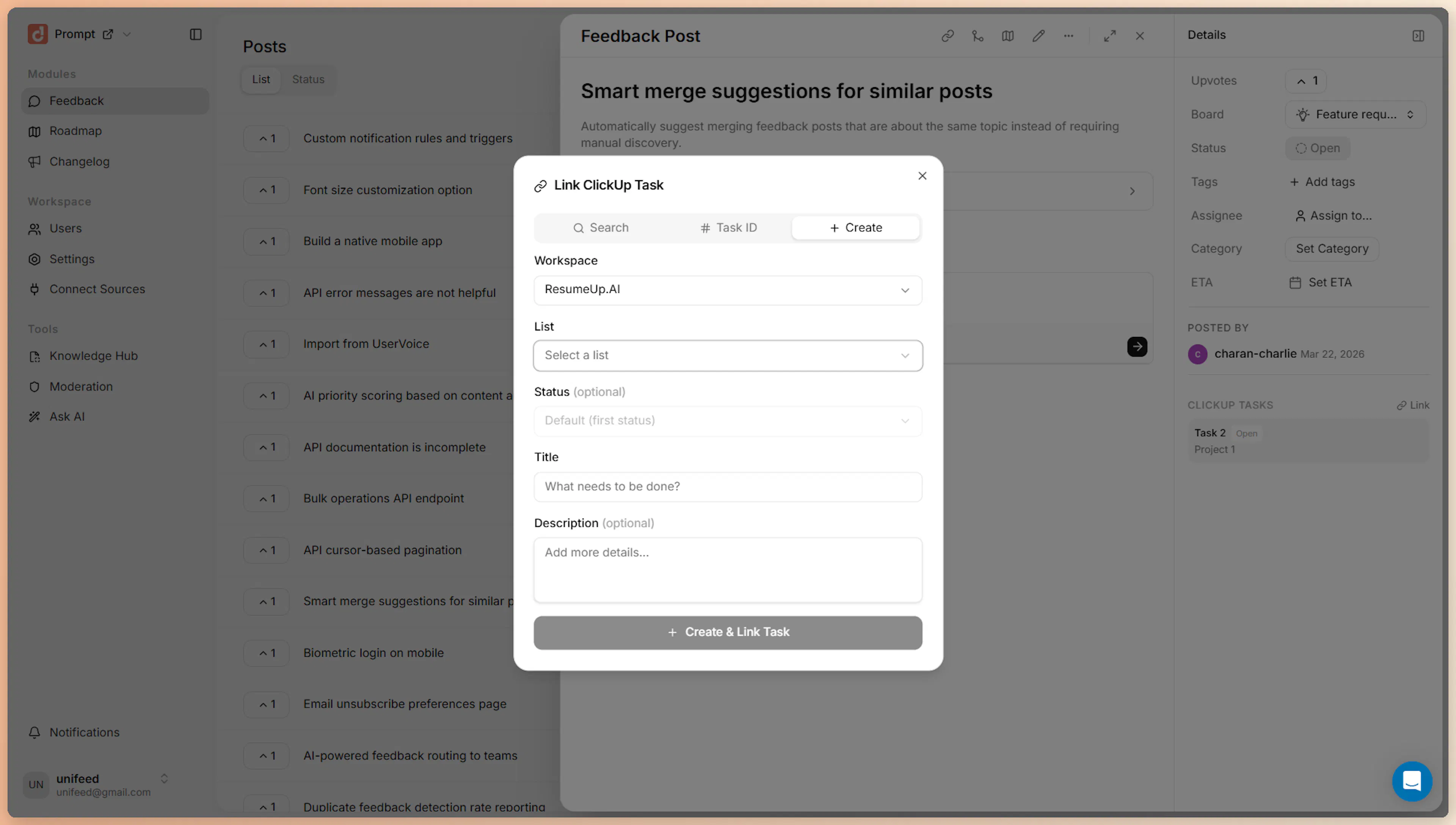
Pick a workspace, then a list, optionally a starting status, and fill in a title and description. Click Create & Link Task to create the task in ClickUp and link it to the post in one step.
Verify the link
The linked task appears in the post's ClickUp Tasks section with its current status. Hover any linked task to open it in ClickUp or unlink it.
Status sync rules
Linking is most powerful when ClickUp status changes flow back into ProductBridge automatically. Status sync rules translate ClickUp task statuses into ProductBridge post statuses.
A rule answers three questions:
-
When a linked ClickUp task changes to status X
-
Should the post change to a specific ProductBridge status (for example, Planned → In Progress → Complete)?
-
And should we notify everyone who voted for this post?
If a post has multiple linked tasks, you also pick whether the rule fires when any task reaches the trigger status, or only when all tasks do.
Create a rule
Open the ClickUp settings page
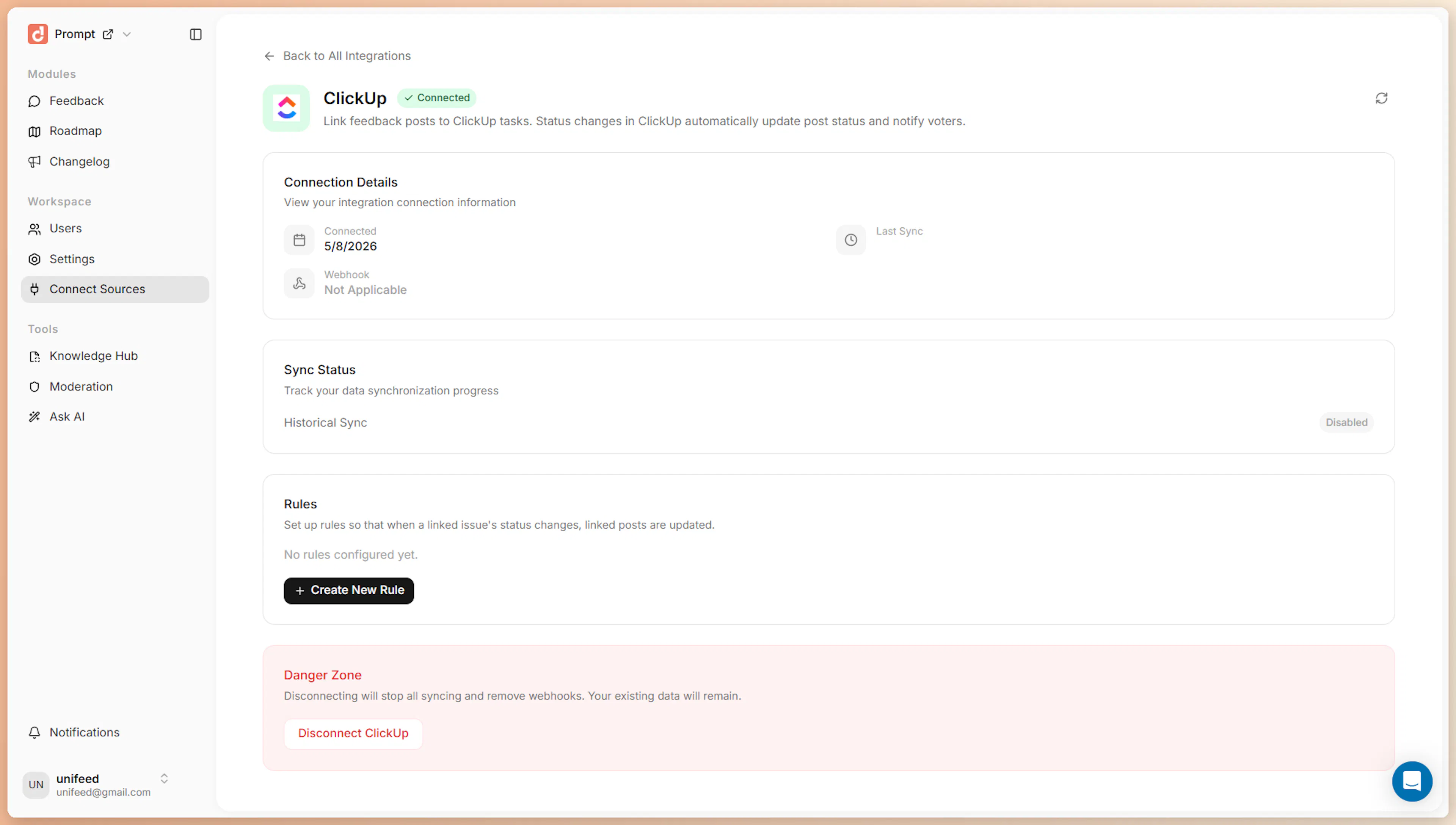
Go back to Connect Sources > ClickUp. Below the connection details, you'll see the Rules section.
Click Create New Rule
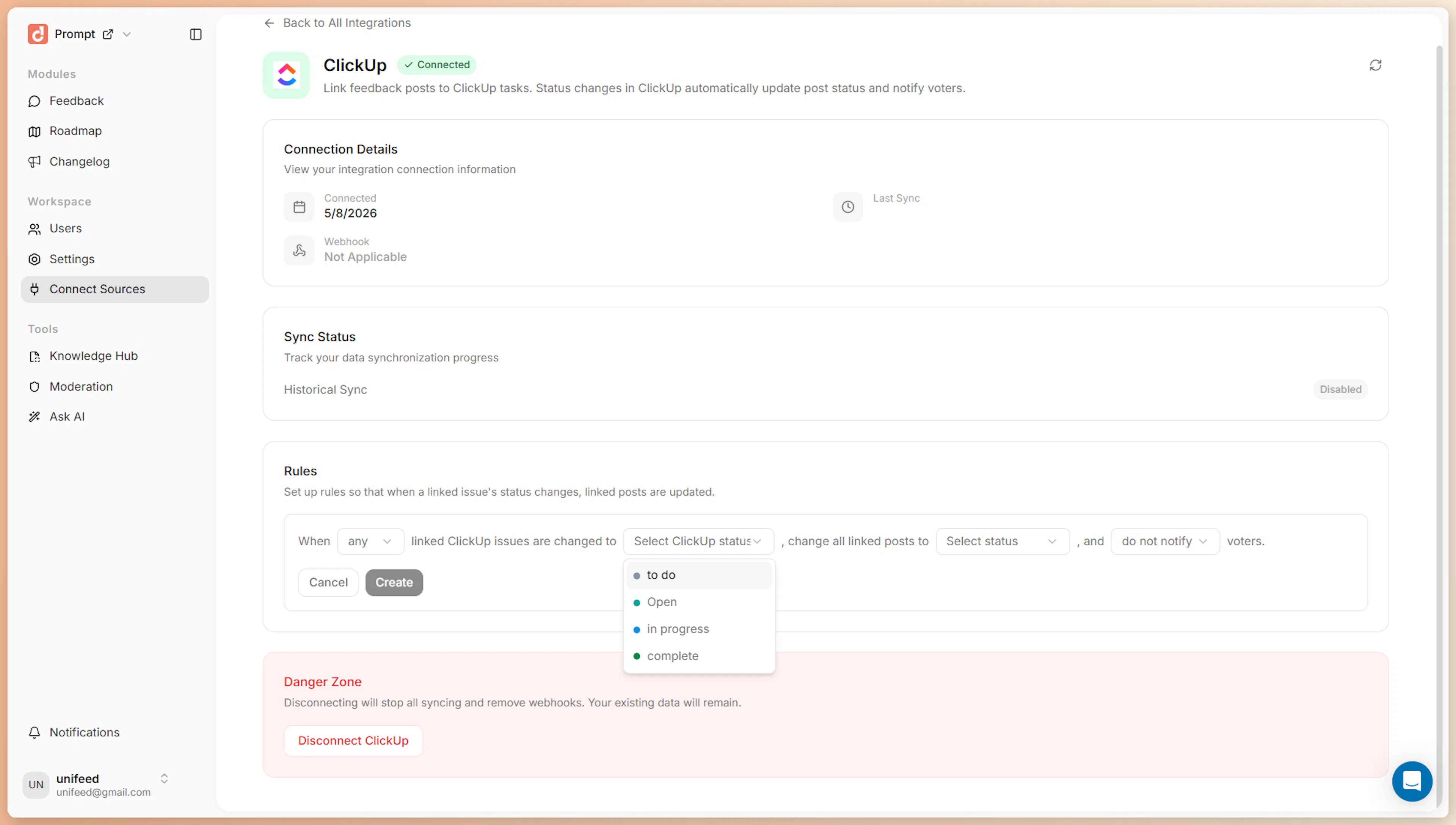
Click Create New Rule. A sentence-style builder appears so you can read the rule in plain English as you build it.
Build the rule
Pick the values left to right:
| Field | What it does |
|---|---|
| any / all | Whether the rule fires when any linked ClickUp task hits the trigger status, or only when all do |
| ClickUp status | The status name from ClickUp that triggers the rule (e.g. in progress, complete) — populated from your real workspace statuses |
| Post status | The ProductBridge feedback status the post should change to |
| Notify / Do not notify voters | Whether to send in-app and email notifications to voters when the rule fires |
ProductBridge reads statuses from the Space level in ClickUp by default (where most workspaces define them) and merges in any per-list custom statuses. If you don't see a status, make sure it exists on at least one Space in your workspace.
Save the rule
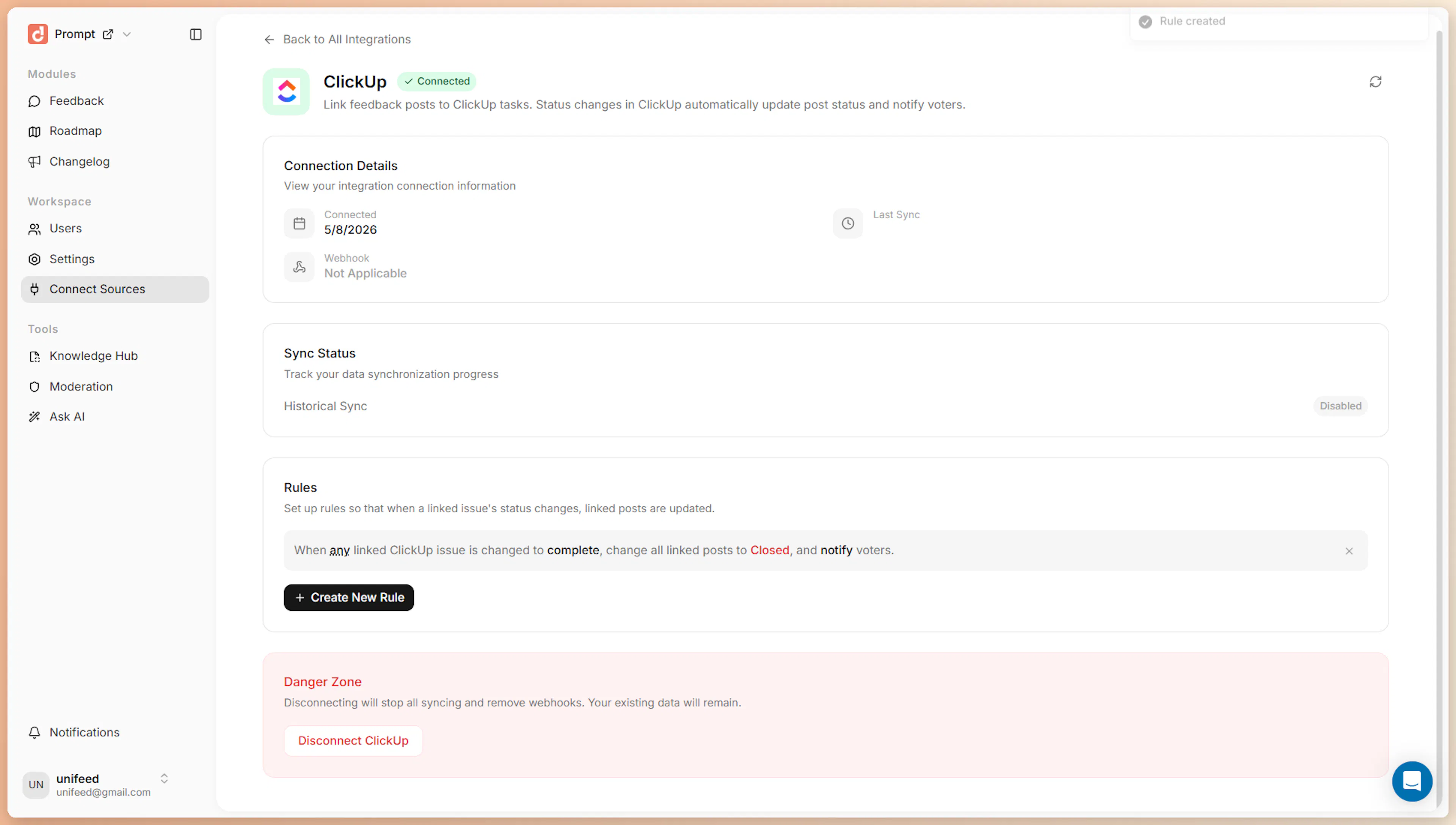
Click Create. The rule appears in the list and is active immediately. New ClickUp status changes that match it start syncing right away.
How rule evaluation works
When a linked task's status changes in ClickUp:
-
ClickUp sends a
taskStatusUpdatedwebhook to ProductBridge -
ProductBridge verifies the webhook signature using the secret stored at connection time
-
It finds every feedback post that links to that task
-
For each rule on the integration, it checks whether the any/all condition is satisfied
-
If a rule matches, the post status is updated and (optionally) voters are notified
Rules are evaluated independently per post, so a single ClickUp status change can update many posts at once.
Behavior to expect
| Action in ClickUp | Effect in ProductBridge |
|---|---|
| Status change on a linked task | Linked task badge on the post updates; rules evaluated; notifications fired if configured |
| Task renamed | Linked task name updates the next time the post is viewed |
| Task deleted | The link remains but loses live status (the integration treats it as orphaned) |
| Task unarchived | Status sync resumes automatically |
| Action in ProductBridge | Effect in ClickUp |
|---|---|
| Link an existing task | A reference is stored on the feedback post; nothing changes inside ClickUp |
| Create a task from a post | A new task appears in the chosen list with the title and description you provided |
| Unlink a task | The reference is removed; the ClickUp task itself is not deleted or modified |
| Disconnect the integration | Stored webhooks are deleted from ClickUp; existing post-task links remain on the post but stop syncing |
Disconnect ClickUp
To stop syncing:
Go to the ClickUp integration page
Open Connect Sources > ClickUp and click Disconnect.
Confirm disconnection
ProductBridge:
-
Marks the integration as disconnected so no new syncs run
-
Calls ClickUp to delete the webhook registered on each authorized workspace
-
Leaves the existing per-post task links in place — your feedback posts keep their reference to the ClickUp task even after disconnect, so you don't lose history. They simply stop receiving status updates.
To revoke ProductBridge from inside ClickUp instead, go to ClickUp Settings > Integrations > Authorized Apps and remove ProductBridge.