Single Sign-On (SSO)
Let your users sign in to the public portal using your existing login system. Configure a JWT redirect flow so ProductBridge hands off authentication to your app — no password required on the ProductBridge side.
Where to find it
Open SSO settings
Sidebar → Settings → Connect → SSO
Direct link: https://app.productbridge.io/dashboard/settings/sso
In-app path: Sidebar → Settings → Connect → SSO
Requires: organization:view to read the configuration, organization:manage to change it.
The page has two tabs:
| Tab | Direct link | What it holds |
|---|---|---|
| SSO Redirect | /dashboard/settings/sso | The three-step redirect setup — configure the login URL, test the round trip, turn it on |
| API Keys | /dashboard/settings/sso?tab=api-keys | The private key used to sign SSO and widget identity JWTs |
Overview
ProductBridge SSO uses a redirect-based JWT flow. When a user visits your portal and clicks Sign In, ProductBridge sends them to your login page. After they authenticate, your server generates a signed JWT and redirects them back. ProductBridge verifies the token and creates an authenticated session.
SSO Redirect
Set your login page URL, test the full redirect flow, and enable SSO for your portal.
Widget Auth
Lock the in-app widget to identified users only and enforce HMAC hash verification.
How It Works
-
User clicks Sign In on your ProductBridge portal
-
ProductBridge redirects to your configured login page with
redirect,organizationId, andreturnToquery parameters -
Your server authenticates the user and generates a signed JWT
-
Your server redirects back to the ProductBridge SSO callback with
ssoTokenandorganizationId -
ProductBridge verifies the JWT signature and creates a 30-day session
The JWT is signed with your Widget API Secret — the same key used for widget identity verification. Your secret never leaves your server.
Configure SSO Redirect
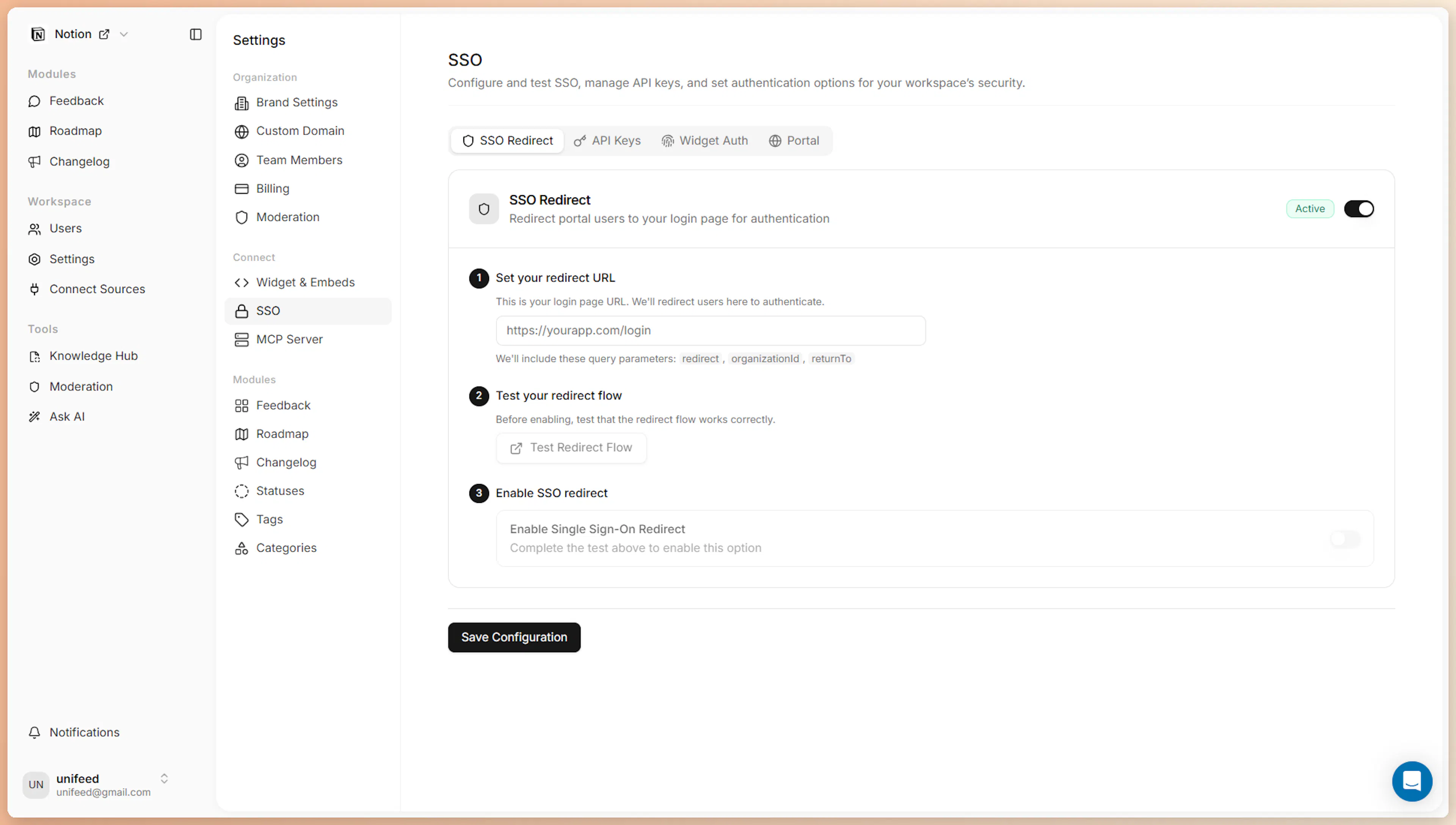
Go to the SSO Redirect tab to configure the three steps below. Each step is a card that shows its own status chip — Set, Passed, Live — so you can see how far the setup has got at a glance.
Step 1 — Set Your Redirect URL
Enter the URL of your login page. This is the page on your application where users will be sent when they click Sign In on your portal.
https://yourapp.com/login
ProductBridge appends these query parameters when redirecting to your login page:
| Parameter | Description |
|---|---|
redirect | The ProductBridge SSO callback URL to redirect back to after login |
organizationId | Your ProductBridge organization ID |
returnTo | The portal page the user was trying to reach |
Your login page should read these parameters, authenticate the user, generate a JWT, and redirect to redirect?ssoToken=JWT&organizationId=organizationId.
Step 2 — Test the Redirect Flow
Click Test Redirect Flow to verify the complete loop before going live. ProductBridge opens a popup, sends a test request to your login page, and waits for a valid JWT callback.
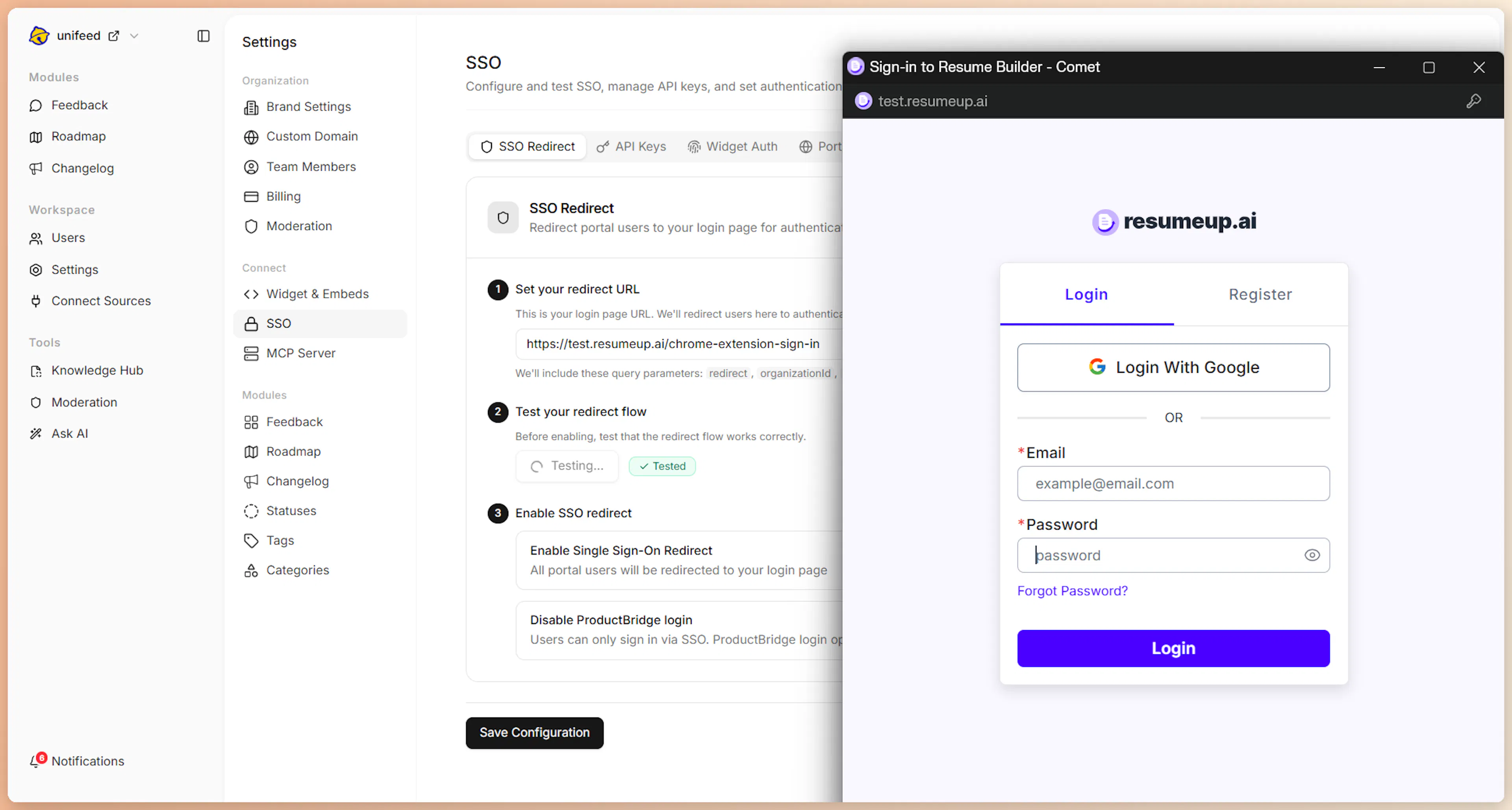
Click Test Redirect Flow
ProductBridge opens a popup window that runs the test flow and redirects to your configured login page with the standard redirect, organizationId, and returnTo query parameters — exactly like a real sign-in.
Complete authentication in the popup
Your login page receives the request, authenticates the test, and sends a JWT back to the ProductBridge callback URL.
See the result
If the JWT is valid, the popup closes and the badge next to the test button changes from Not Tested to Tested. If verification fails, an error message describes what went wrong.
You must complete a successful test before you can enable SSO. The Enable SSO toggle is locked until the test passes.
Step 3 — Enable SSO
After a successful test, two toggles become available (visible at the bottom of the screenshot at the top of this section).
Enable Single Sign-On Redirect — When on, all portal Sign In clicks redirect to your login page instead of showing the ProductBridge login form.
Disable ProductBridge login — When on, the native ProductBridge login form is hidden entirely. Users can only sign in via your SSO redirect. Enable this only after confirming SSO works correctly.
Enabling "Disable ProductBridge login" locks out all users who previously signed in with a ProductBridge password. Make sure SSO is fully working before turning this on. You can always disable SSO from the dashboard to restore access.
Generate the SSO JWT
Your login page must generate a signed JWT and redirect back to ProductBridge. Sign the token with your Widget API Secret using HS256.
Get Your API Secret
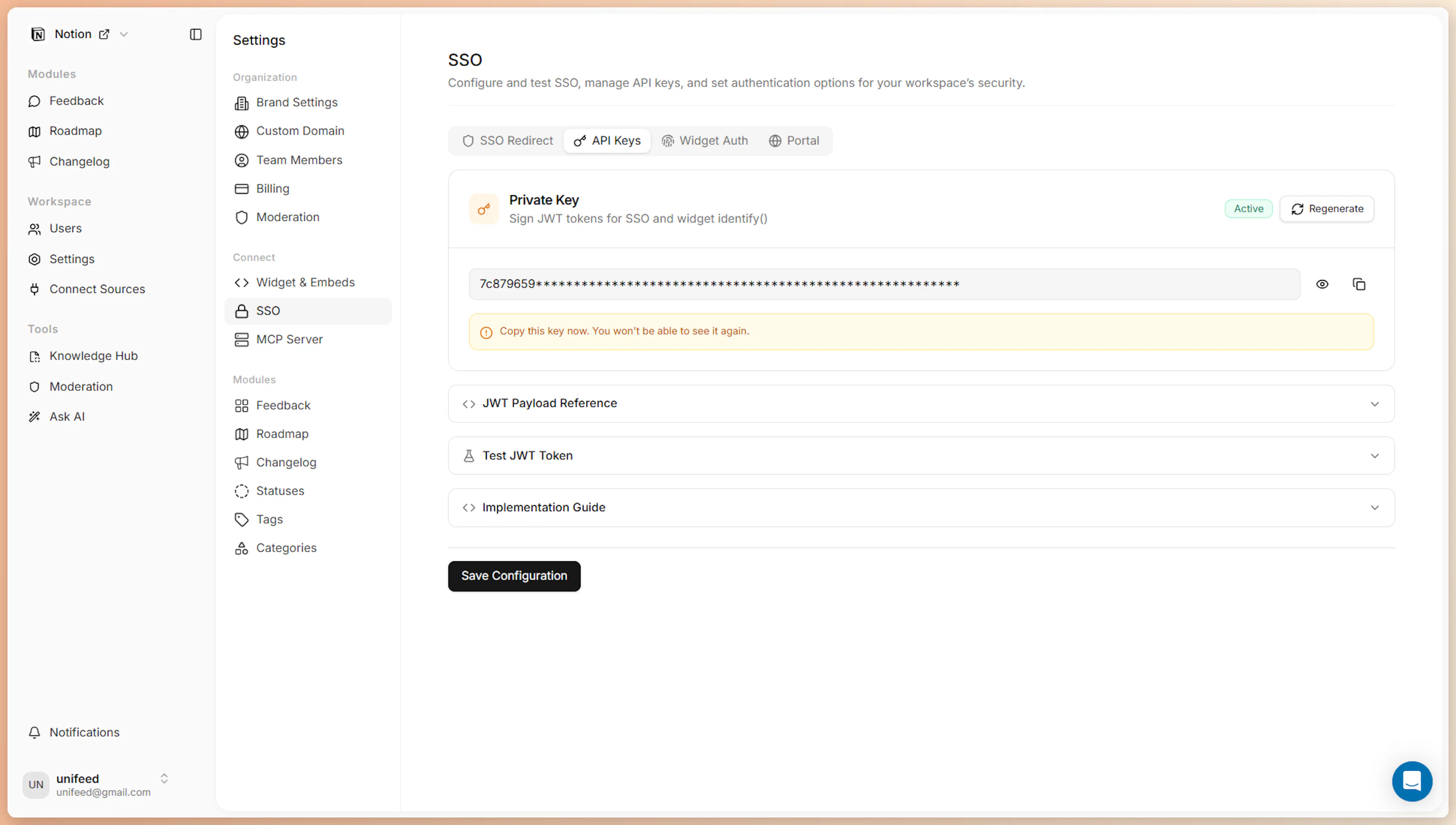
Go to the API Keys tab. If no key exists yet, click Generate key — the button reads Regenerate once a key is active.
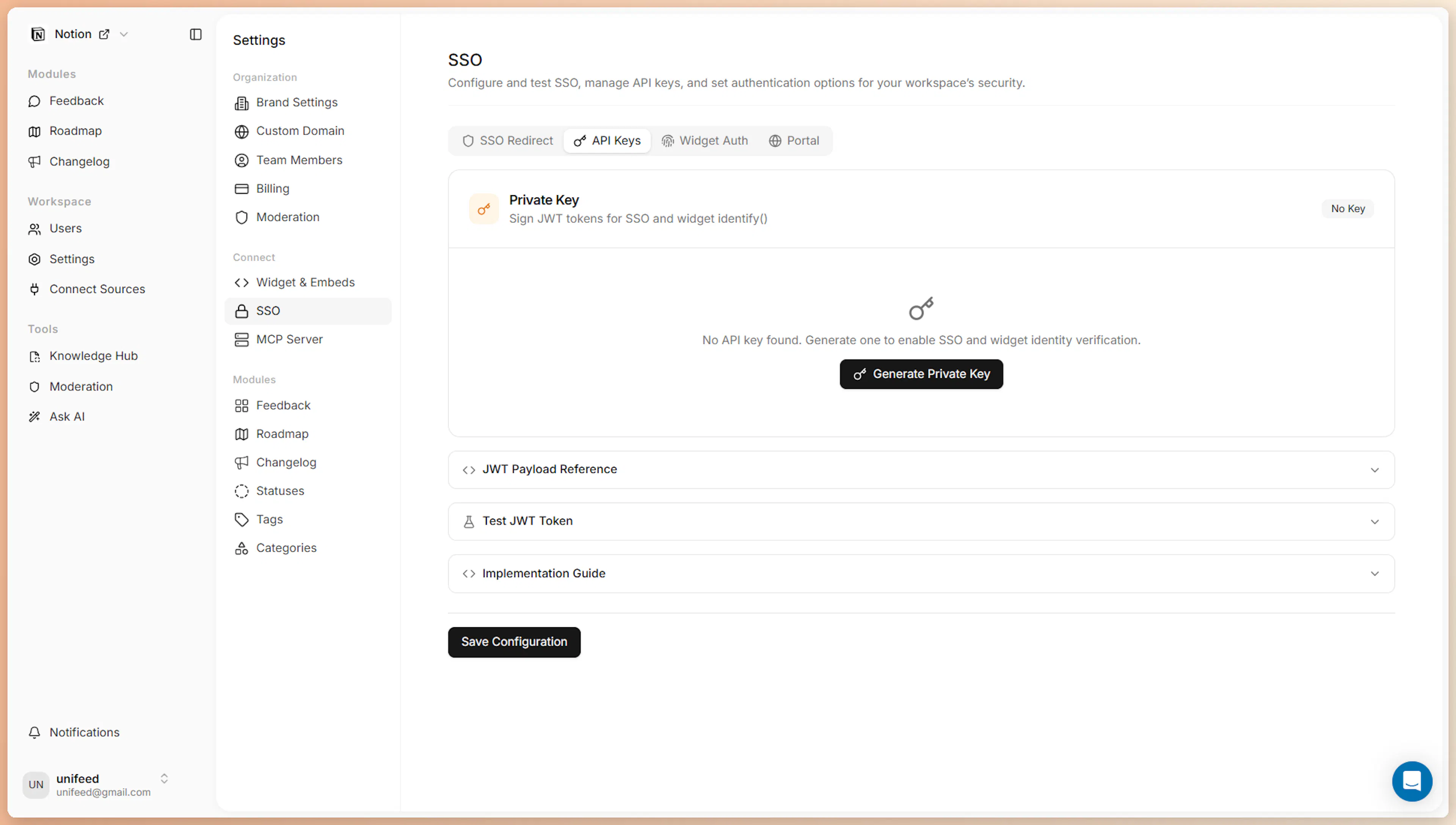
After generation, the full secret is shown once. Copy it immediately and store it in your server environment.
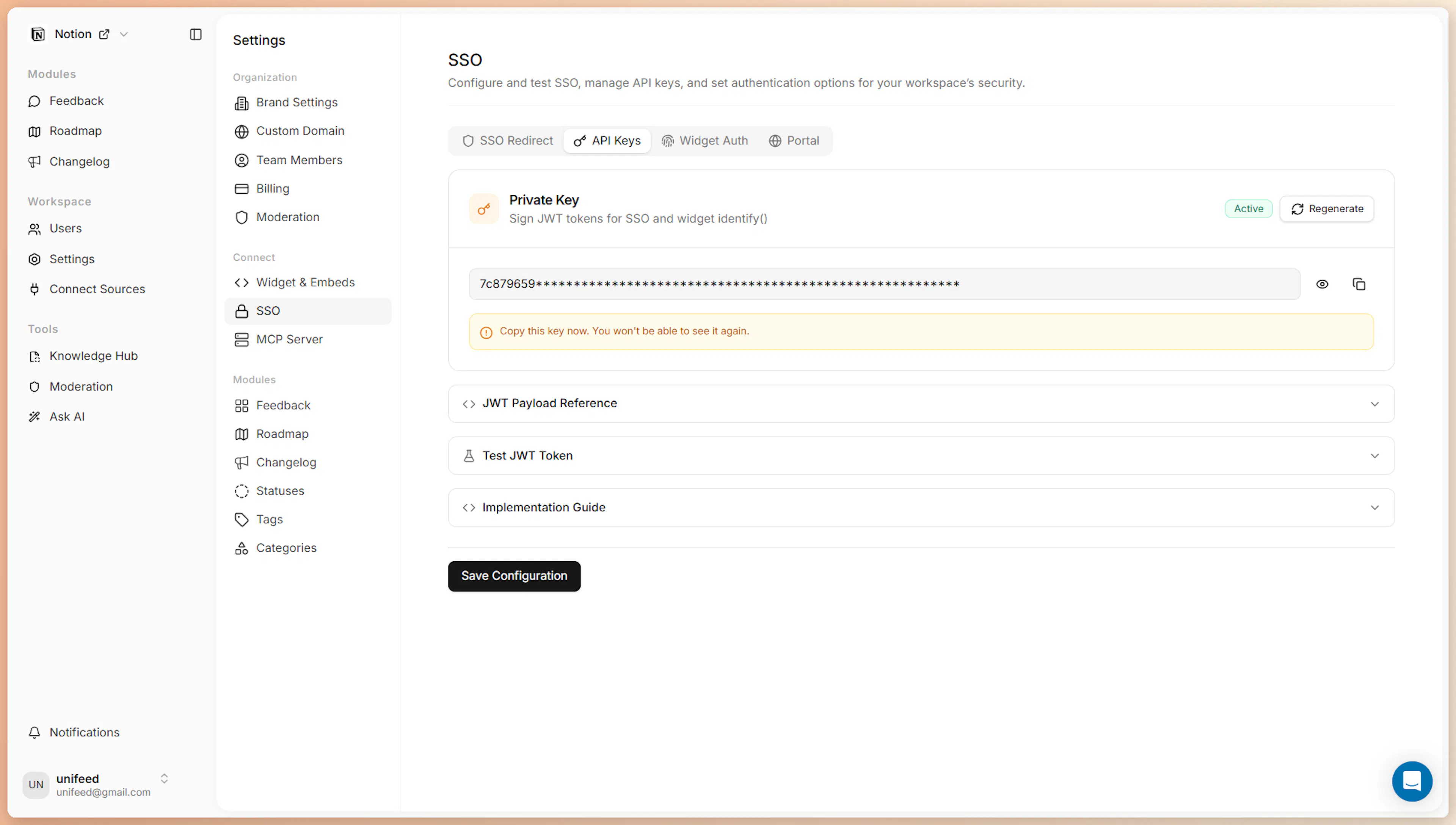
PRODUCTBRIDGE_WIDGET_SECRET=your_64_char_hex_secret
The full secret is displayed only once at generation time. If you lose it, click Regenerate to issue a new key — but be aware this immediately invalidates every existing JWT signed with the old secret.
Generate the JWT
const jwt = require('jsonwebtoken');
// npm install jsonwebtoken

const PRODUCTBRIDGE_SECRET = process.env.PRODUCTBRIDGE_WIDGET_SECRET;

// Called after your own auth succeeds
function handleSSOCallback(req, res) {
  const { redirect, organizationId, returnTo } = req.query;
  const user = req.user; // your authenticated user

  const token = jwt.sign(
    {
      // Required
      email: user.email,

      // Recommended
      name: user.name,
      id: String(user.id),
      avatarURL: user.avatarUrl,

      // Optional: company & plan data
      company_name: user.companyName,
      company_id: String(user.companyId),
      company_mrr: user.mrr,
      customer_status: user.status,     // "active" | "trial" | "churned"
      renewal_date: user.renewalDate,   // ISO date string
      renewal_risk: user.renewalRisk,   // "low" | "medium" | "high"
    },
    PRODUCTBRIDGE_SECRET,
    { expiresIn: '1h', algorithm: 'HS256' }
  );

  // Redirect back to ProductBridge
  const callbackUrl = new URL(redirect);
  callbackUrl.searchParams.set('ssoToken', token);
  callbackUrl.searchParams.set('organizationId', organizationId);
  if (returnTo) callbackUrl.searchParams.set('returnTo', returnTo);

  res.redirect(callbackUrl.toString());
}
import jwt
import os
from datetime import datetime, timedelta, timezone
# pip install PyJWT

PRODUCTBRIDGE_SECRET = os.environ['PRODUCTBRIDGE_WIDGET_SECRET']

def handle_sso_callback(request):
    redirect_url = request.args.get('redirect')
    organization_id = request.args.get('organizationId')
    return_to = request.args.get('returnTo')
    user = current_user  # your authenticated user

    payload = {
        # Required
        'email': user.email,

        # Recommended
        'name': user.name,
        'id': str(user.id),
        'avatarURL': user.avatar_url,

        # Optional: company & plan data
        'company_name': user.company_name,
        'company_id': str(user.company_id) if user.company_id else None,
        'company_mrr': user.mrr,
        'customer_status': user.status,
        'renewal_date': user.renewal_date,
        'renewal_risk': user.renewal_risk,

        # Token lifetime
        'exp': datetime.now(tz=timezone.utc) + timedelta(hours=1),
    }

    token = jwt.encode(payload, PRODUCTBRIDGE_SECRET, algorithm='HS256')

    from urllib.parse import urlparse, urlencode, parse_qs
    import urllib.parse

    params = {'ssoToken': token, 'organizationId': organization_id}
    if return_to:
        params['returnTo'] = return_to

    callback = f"{redirect_url}?{urlencode(params)}"
    return redirect(callback)
<?php
use Firebase\JWT\JWT;
// composer require firebase/php-jwt

class SSOController extends Controller
{
    public function callback(Request $request): \Illuminate\Http\RedirectResponse
    {
        $redirectUrl    = $request->query('redirect');
        $organizationId = $request->query('organizationId');
        $returnTo       = $request->query('returnTo');
        $user           = $request->user();

        $payload = array_filter([
            // Required
            'email'           => $user->email,

            // Recommended
            'name'            => $user->name,
            'id'              => (string) $user->id,
            'avatarURL'       => $user->avatar_url,

            // Optional
            'company_name'    => $user->company_name,
            'company_id'      => $user->company_id ? (string) $user->company_id : null,
            'company_mrr'     => $user->mrr,
            'customer_status' => $user->status,
            'renewal_date'    => $user->renewal_date,
            'renewal_risk'    => $user->renewal_risk,

            'exp'             => time() + 3600,
        ]);

        $token = JWT::encode($payload, env('PRODUCTBRIDGE_WIDGET_SECRET'), 'HS256');

        $params = http_build_query(array_filter([
            'ssoToken'       => $token,
            'organizationId' => $organizationId,
            'returnTo'       => $returnTo,
        ]));

        return redirect("{$redirectUrl}?{$params}");
    }
}
require 'jwt'

class SSOController < ApplicationController
  def callback
    redirect_url    = params[:redirect]
    organization_id = params[:organizationId]
    return_to       = params[:returnTo]
    user            = current_user

    payload = {
      # Required
      email: user.email,

      # Recommended
      name: user.name,
      id: user.id.to_s,
      avatarURL: user.avatar_url,

      # Optional
      company_name: user.company_name,
      company_id: user.company_id&.to_s,
      company_mrr: user.mrr,
      customer_status: user.status,
      renewal_date: user.renewal_date,
      renewal_risk: user.renewal_risk,

      exp: 1.hour.from_now.to_i,
    }.compact

    token = JWT.encode(payload, ENV['PRODUCTBRIDGE_WIDGET_SECRET'], 'HS256')

    query = { ssoToken: token, organizationId: organization_id, returnTo: return_to }.compact
    redirect_to "#{redirect_url}?#{query.to_query}"
  end
end
package handlers

import (
    "net/http"
    "net/url"
    "os"
    "time"

    "github.com/golang-jwt/jwt/v5"
)

var secret = []byte(os.Getenv("PRODUCTBRIDGE_WIDGET_SECRET"))

type SSOClaims struct {
    Email          string  `json:"email"`
    Name           string  `json:"name,omitempty"`
    ID             string  `json:"id,omitempty"`
    AvatarURL      string  `json:"avatarURL,omitempty"`
    CompanyName    string  `json:"company_name,omitempty"`
    CompanyID      string  `json:"company_id,omitempty"`
    CompanyMRR     float64 `json:"company_mrr,omitempty"`
    CustomerStatus string  `json:"customer_status,omitempty"`
    RenewalDate    string  `json:"renewal_date,omitempty"`
    RenewalRisk    string  `json:"renewal_risk,omitempty"`
    jwt.RegisteredClaims
}

func SSOCallback(w http.ResponseWriter, r *http.Request) {
    q           := r.URL.Query()
    redirectURL := q.Get("redirect")
    orgID       := q.Get("organizationId")
    returnTo    := q.Get("returnTo")
    user        := userFromContext(r.Context())

    claims := SSOClaims{
        Email:          user.Email,
        Name:           user.Name,
        ID:             user.ID,
        AvatarURL:      user.AvatarURL,
        CompanyName:    user.CompanyName,
        CompanyID:      user.CompanyID,
        CompanyMRR:     user.MRR,
        CustomerStatus: user.Status,
        RenewalDate:    user.RenewalDate,
        RenewalRisk:    user.RenewalRisk,
        RegisteredClaims: jwt.RegisteredClaims{
            ExpiresAt: jwt.NewNumericDate(time.Now().Add(time.Hour)),
            IssuedAt:  jwt.NewNumericDate(time.Now()),
        },
    }

    token, _ := jwt.NewWithClaims(jwt.SigningMethodHS256, claims).SignedString(secret)

    cb, _ := url.Parse(redirectURL)
    p := url.Values{"ssoToken": {token}, "organizationId": {orgID}}
    if returnTo != "" {
        p.Set("returnTo", returnTo)
    }
    cb.RawQuery = p.Encode()

    http.Redirect(w, r, cb.String(), http.StatusFound)
}
JWT Payload Reference
| Field | Type | Required | Description |
|---|---|---|---|
email | string | Yes | User's email — used as the primary identity anchor |
name | string | Recommended | Display name shown in the ProductBridge dashboard |
id | string | Recommended | Your internal user ID for deduplication |
avatarURL | string | No | Profile picture URL |
company_name | string | No | User's company name |
company_id | string | No | Your internal company / account ID |
company_mrr | number | No | Monthly recurring revenue in USD |
customer_status | string | No | active, trial, churned, or any custom value |
renewal_date | string | No | ISO date string of the next renewal |
renewal_risk | string | No | low, medium, or high |
account_owner_id | string | No | Internal ID of the account owner or CSM |
account_owner_email | string | No | Email of the account manager or CSM |
external_user_id | string | No | Any external system ID (CRM, Salesforce, etc.) |
Only email is required. Start there and add company and plan fields later when you want user segmentation and revenue-weighted prioritization in your dashboard.
Widget Identity Settings
The Widget Auth tab has been removed from the dashboard. The SSO settings page now has only two tabs — SSO Redirect and API Keys. To set up widget identity verification, go to Settings → Connect → Widget & Embeds, where the User Identity Verification section shows the JWT snippet to use.
The behaviors described below are still enforced by the identity endpoint, but there is no longer a screen for changing them. Contact help@productbridge.io if you need one of these changed for your organization.
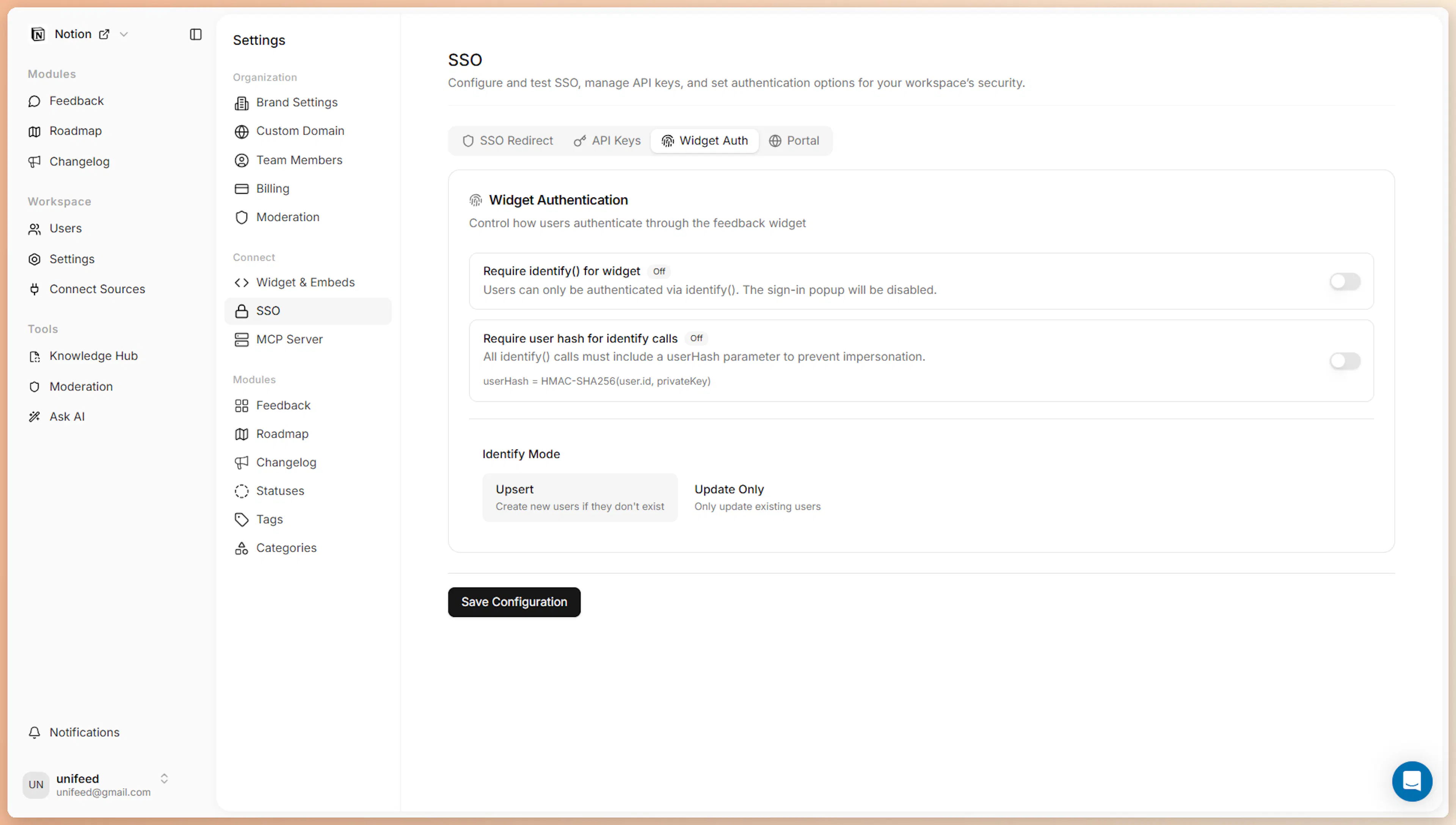
Require User Hash for Identify Calls
When Require user hash for identify calls is enabled, ProductBridge additionally validates a user_hash — an HMAC-SHA256 hash of the user ID — sent as a separate parameter alongside the JWT (not inside the JWT payload). The JWT must also include a sub claim carrying the user ID being hashed.
The current ProductBridge widget SDK does not send a user_hash parameter with identify calls. Turning this on will cause identify calls made through the shipped SDK to be rejected. Leave it off unless you're calling the verify-identity API directly and sending user_hash yourself.
This check is still enforced, but it is off by default and there is no dashboard control for it.
Identify Mode
Controls what happens when the widget receives an identify() call for a user who does not exist in ProductBridge yet.
| Mode | Behavior |
|---|---|
| Upsert (default) | Creates a new user record if the email is not found. Use for self-serve products where any authenticated user can submit feedback. |
| Update Only | Rejects identify calls for unknown emails. Use when you want to restrict widget feedback to a pre-imported user list only. |
Portal Auth Methods
The Portal tab that used to display these two values has been removed. You no longer need to copy the callback URL by hand — ProductBridge appends it to your login URL automatically as the redirect parameter. The values below are still what the flow uses.
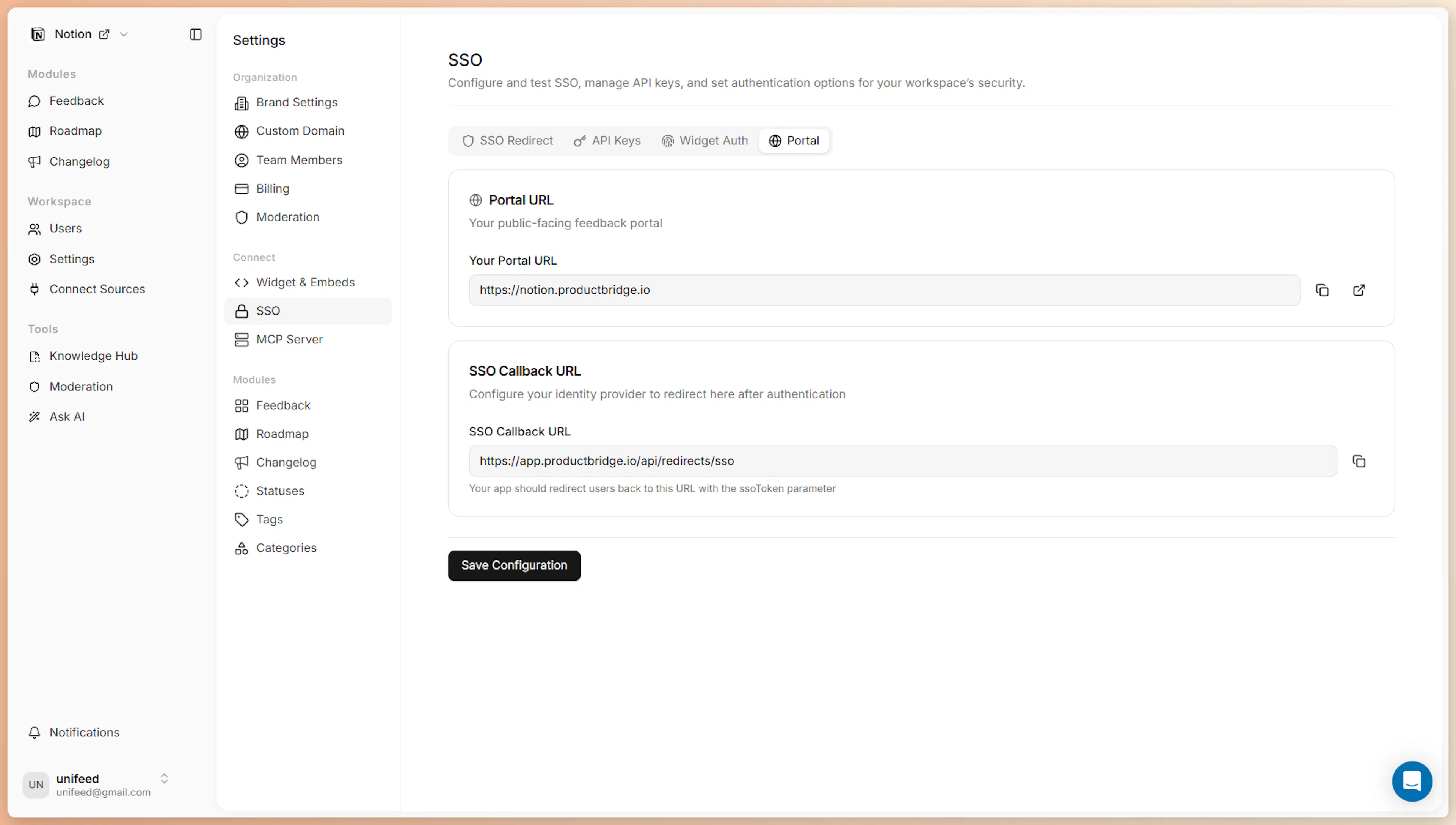
| Field | Value |
|---|---|
| Portal URL | Your public portal address (subdomain or custom domain) |
| SSO Callback URL | The URL your login page redirects back to — always /api/redirects/sso on your portal host |
Allowlist the SSO Callback URL on your OAuth provider or CSRF whitelist if your login system enforces origin checking.